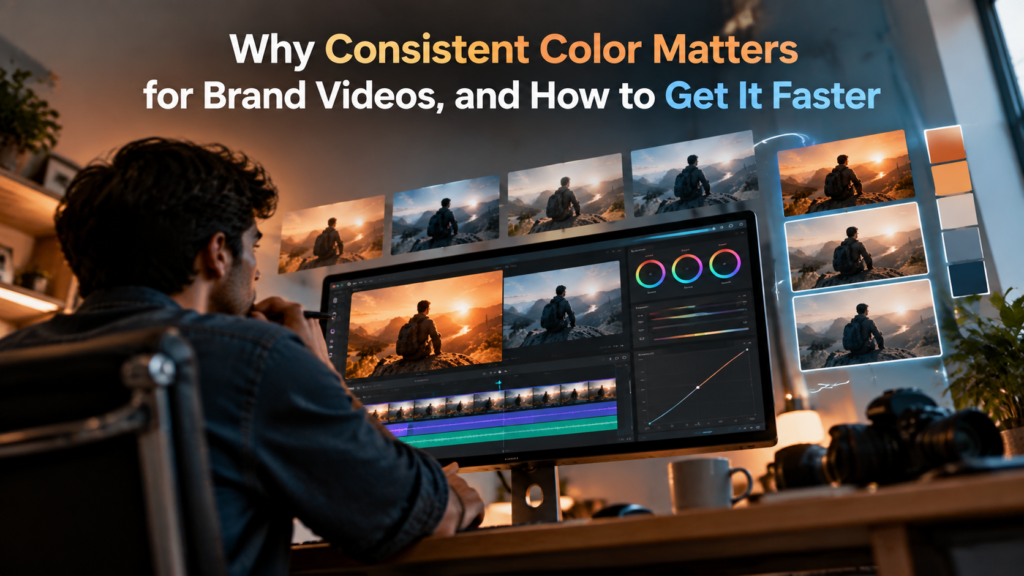
Scroll through the video page of almost any small brand and you will notice something. One video looks warm and golden. The next looks cold and blue. A third has washed-out colors that seem to belong to a different company. Each video might be good on its own, but together they feel like they were made by strangers.
Color is one of the quietest parts of a brand and one of the most powerful. This guide explains why consistent color matters for brand videos, what usually goes wrong, and how to get a reliable look without spending hours on every project.
Why Color Consistency Builds Trust
People recognize brands by patterns. A logo, a font, and a color palette all tell viewers that content comes from the same source. When your videos share a look, viewers connect them faster, even before they read your name.
Consistency also signals care. A brand that keeps its color steady from video to video looks organized and professional. A brand that jumps between looks can seem careless, even if the content is strong. Since viewers decide within seconds whether a video feels trustworthy, small visual details carry more weight than most teams expect.
What Makes Color Inconsistent
Most color problems come from ordinary production habits, not from bad editing skills.
Different cameras record color differently. A phone, a mirrorless camera, and a webcam will show the same face in three slightly different tones. Lighting changes too. A window that gives soft daylight in the morning can turn harsh and yellow by afternoon. Auto white balance makes things worse, because the camera quietly changes its color settings as the scene changes.
Then there is the human factor. When several people edit for one brand, each applies a look from memory. Without a shared reference, the videos drift apart a little more each month.
Start With a Simple Color Standard
The fastest way to get consistent color is to decide what “correct” looks like before you edit anything. This does not require a long brand manual. A one-page standard is enough.
Pick one reference frame from a video you already love. Note whether the look is warm or cool, bright or moody, vivid or soft. Write down your rule for skin tones, since faces are the first thing viewers judge. Save the reference where everyone on the team can find it.
A reference image is far more useful than adjectives. Words like “clean” and “cinematic” mean different things to different people, but a picture removes the guesswork. Invideo editor works well with this approach, since you can share a reference image with its AI agents and use it as the target for the grade.
Correct First, Then Grade
Two steps sound similar but do different jobs. Color correction fixes problems, such as exposure that is too dark or a color cast that makes a white wall look green. Color grading creates the look and the warm or cool mood that carries your brand.
Always correct first. If you grade before fixing the basics, you end up stacking a style on top of a problem, and the result looks off no matter how much you adjust it. A clean, neutral starting point makes every later step faster and more predictable.
Choosing Software That Gets You There Faster
Manual color work is slow because it repeats. You adjust one clip, then match the next, then the next, checking each against the reference. For a team publishing several videos a month, that time adds up quickly.
A good editor should help in three ways. It should let you start from a reference image or a written description. It should let you fine-tune the result by hand afterward. And it should keep every change visible so you can review or undo it.
Invideo editor brings these together, and its color grading tool lets you correct exposure, balance colors, and create the look you want. You can describe the grade to AI agents or share a reference image, then fine-tune with color wheels, curves, and manual controls. That gives you a quick first pass without giving up control over the final result.
A Faster Workflow You Can Repeat
A repeatable routine matters more than any single feature. Here is one that works for most brand video projects.
- Finish the edit before you grade, so you never color footage you will delete.
- Correct exposure and white balance on each clip.
- Apply your reference look across the sequence.
- Check skin tones, then compare a few shots side by side.
- Fine-tune with wheels and curves where the first pass missed.
- Review the export on a phone and a computer screen.
If you are working from a long recording with repeated takes, invideo editor can also assemble a clean base cut first. That means your color work only goes onto footage that makes it into the final video.
Keeping a Team on the Same Look
Color drifts fastest when several people touch the same brand. A shared reference frame helps, but a shared project helps more. When everyone works inside one project and can see the same timeline, it becomes easy to spot when one video looks different from the rest.
Invideo editor supports this by letting editors, collaborators, and AI agents work inside the same shared project. A reviewer can check the look against your reference without downloading files or asking for another export. Adding a quick color check to your approval step, alongside the usual checks for spelling and logos, catches most drift before it reaches your audience.
Common Mistakes to Avoid
Over-saturating is the most common one. Strong colors look exciting for a few seconds and tiring after that. Copying a film still too literally is another, since footage shot in different lighting will never match a reference exactly. Forcing it usually ruins skin tones.
Teams also forget to check on more than one screen. Color can look different on a phone, a laptop, and a monitor. And many skip the step of comparing the graded clip with the original, which is the easiest way to confirm the change is actually an improvement.
Conclusion
Consistent color makes a brand look reliable, and viewers notice it even when they cannot say why. The path there is simple. Set a reference look, correct each clip before you grade, fine-tune by hand, and check the result on more than one screen.
The real time saver is letting software handle the repetitive matching while you keep the final say. With invideo editor, you can start from a reference image, get a solid first grade quickly, and spend your energy on the creative choices that make your videos feel like yours.